


Why You're Seeing This
Some Inclusive Access materials are blocked by Safari’s privacy settings on Apple devices. If you're seeing a message that says your launch was unsuccessful, it could be due to one of the settings below blocking the necessary cookies or content.
iOS Devices
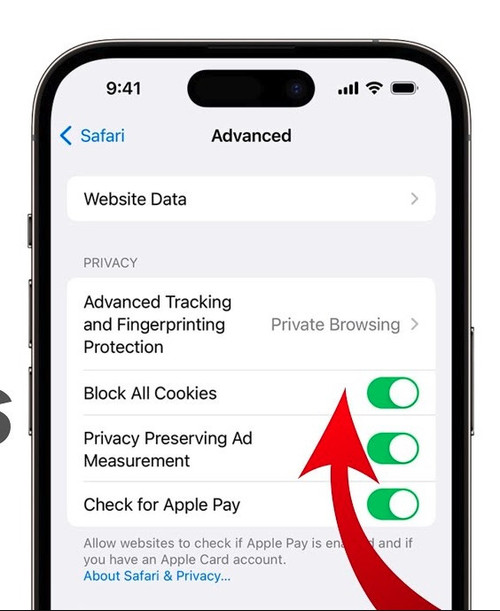
1. Turn Off “Block All Cookies”
Go to: Settings > Safari > Advanced > Block All Cookies
Make sure this setting is turned off. If the toggle is green, it’s currently on — tap to disable it.
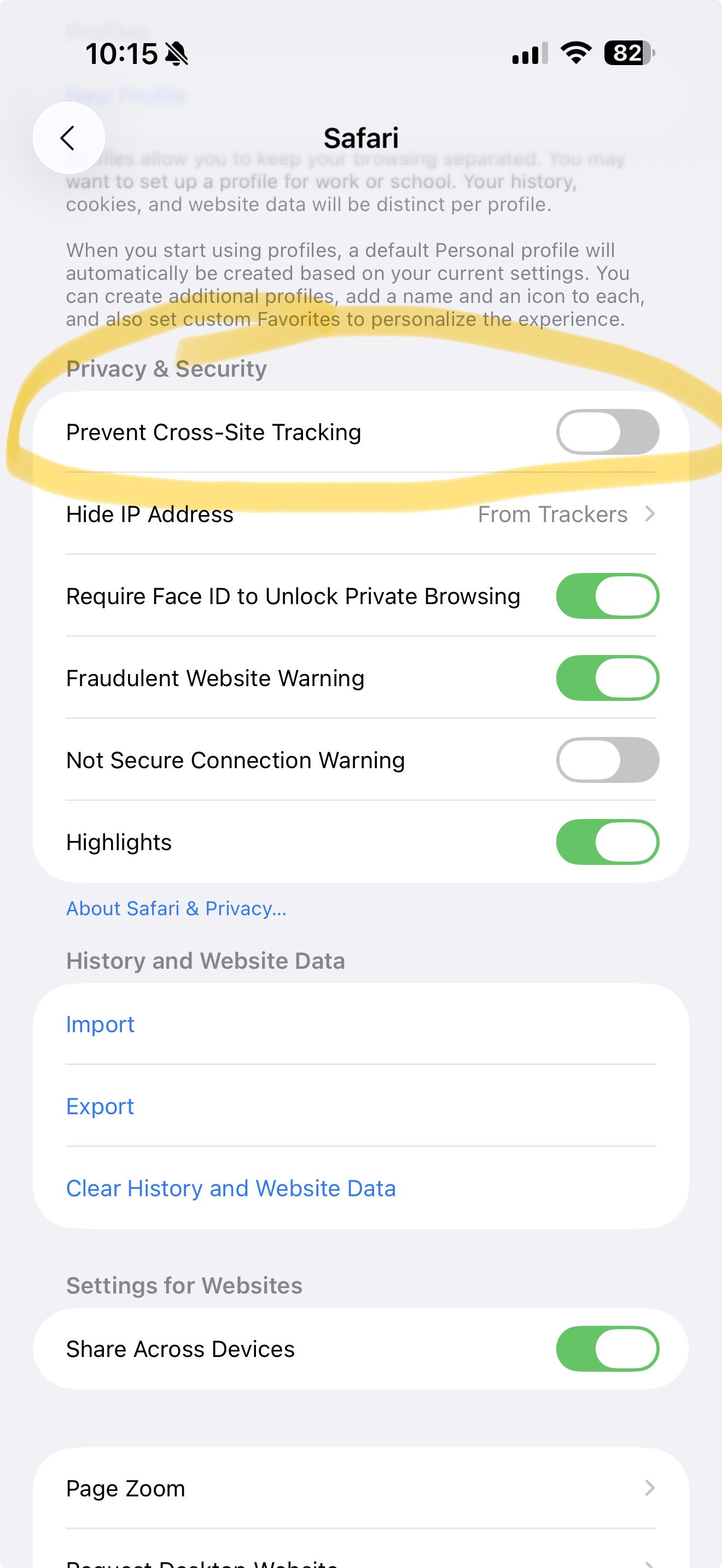
2. Turn Off “Prevent Cross-Site Tracking”
In Safari settings, scroll down and locate Prevent Cross-Site Tracking. This should also be turned off.
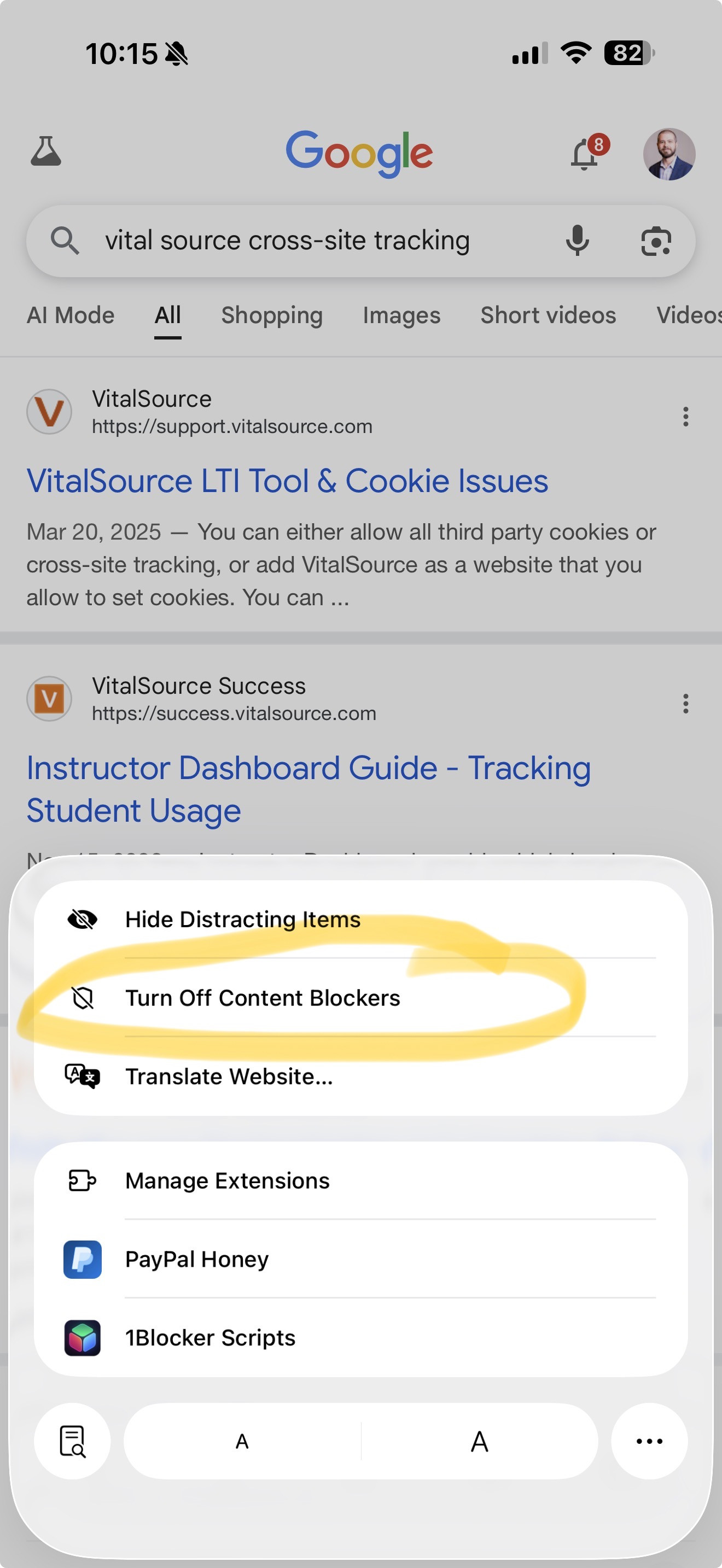
3. Turn Off Content Blockers
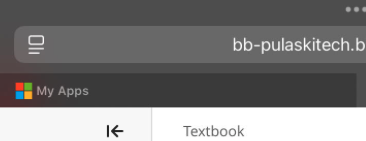
While using Safari, tap the aA or puzzle icon in the address bar and choose “Turn Off Content Blockers.”
Here’s how the icons may appear:
MacOS Devices
1. Open Safari Settings
Click "Safari" in the top left corner of your screen (next to the Apple icon), then click "Settings" (or "Preferences" depending on version).

2. Adjust Privacy Settings
In the "Privacy" tab, make sure the boxes for "Prevent Cross-Site Tracking" and "Hide IP Address" are not checked.

VitalSource Cookie Policy
VitalSource requires cookies to function properly inside Blackboard Ultra. If cookies are blocked, the material won’t load correctly.
Still Need Help?
If you've followed all the steps above and are still experiencing issues, please take a screenshot of your error and email tmcdonald@textbookbrokers.com for further assistance.